This procedure assumes that you don’t yet have a Seller account, but if you already have a Seller account, start from “The first step is to Search Amazon’s catalogue… “
Go to Amazon.com and scroll to the footer menu.
Under the Make Money with Us footer area, click the Sell on Amazon link:

> You’ll see a Start Selling on Amazon Today page:

At top right, click to Sign into your Seller Account:

> You should see your dashboard:
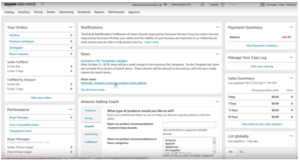
At top left click Inventory > Add a product:
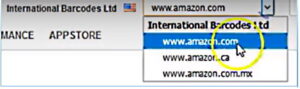
At the top centre of the Add a Product page, select which Amazon account you are using (this is usually Amazon.com, but you may also choose to list in other regions):
On the page there are two broad options for adding a product:
List a new product
List many products via bulk upload.
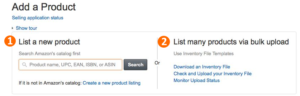
In our current current procedure we are adding a New product…
The first step is to Search Amazon’s catalogue to check that your barcode number is not in use…
In the List a new product section, enter your barcode number and click Search:
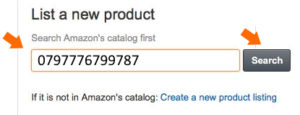
Amazon should then inform you that it could not find any products for your number:
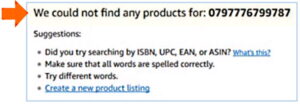
This means that you CAN use this barcode number.
NOTE: If Amazon says that this number is already in use, it means that someone else is using it fraudulently – please contact Amazon for instructions.
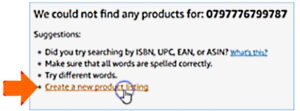
Click Create a new product listing:
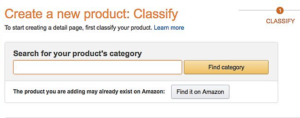
In the screen that displays you will need to CLASSIFY your new product:
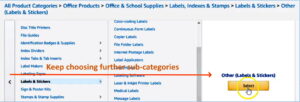
Look under All Product Categories and go through the process of choosing a Product Category that best suits your product.
Tip: Check similar Amazon Products to see what Product categories they use.
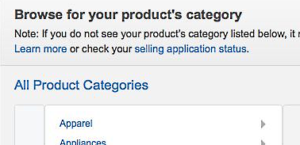
You can either Search for the Category or use the“drill-down” procedure (as you click a category it opens sub-categories to the right, and you keep selecting until reaching an end-point).
When you have a final Category, click the Select button.
> You will see an information-input screen that is laid out in tabs:

The next procedures will be to click the tabs and complete the information for them:
Vital Info | Variations | Offer | Images | Description | Keywords | More Details
Complete the Vital Info tab:
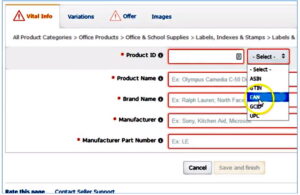
Important points for the Vital info tab:
Product ID:
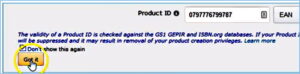
You will see a message that you can opt to hide in future procedures:
Product Name:
-
-
- These words are the first that customers see alongside the product image.
- 200 character limit.
- Work at understanding User Intent (what users are looking for) and be descriptive so that browsing customers understand your product and see its benefits.
- Remember that Amazon is a Search Engine so for SEO purposes
- Try to pack keywords, benefits and features into your Product Name.
- Amazon uses your Title to rank your product against competitor products in Search.
- Amazon improves your listing the more clicks and conversions you get.
- If you have a Brand, use it in the name so that the product benefits from your Brand presence.
- Examples:
Ineffective Product Name: “Slasher5”
Effective Product Name (including your brand): ” ironDude Slasher5 | stylish stainless steel | 250g | essential survival tool for fishing, hunting, hiking, outdoors | introductory low price “
- You can take it a step further with some more effort;
- Conduct keyword research and integrate the best keywords into the Product Name.
- Use the best keyword at the start of the Product Name.
-
Product ID:
Paste your barcode number here.
The Save and finish button will be disabled until you have completed all fields:

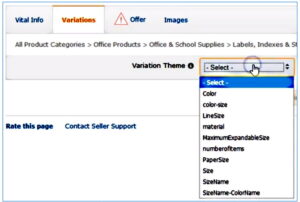
Complete the Variations tab:
Complete the Offer tab:
( Note that there is an option to Let me skip the Offer data for now and add it later )
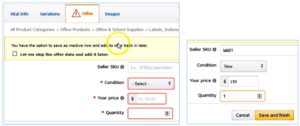
SKU (optional): Stock Keeping Unit – a unique numerical identifying number.
Tax code – If you are using Amazon tax collection services.
Fulfillment latency – (Only if you are not using Fulfillment by Amazon) The time that you will take to ship the product.
Start selling date – On this date your product becomes available on Amazon.
Fulfillment Channel – Decide if you will fulfill orders yourself or have Amazon fulfill them.
When Amazon calculates that it has the minimum required information for your product it enables the Save and finish button (but you may still have an Images tab to complete).
Complete the Images tab:
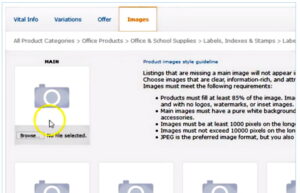
This lays out strict guidelines for accepting images:
• To appear in Search or Browse, your listing must have a main image.
• Products for sale must fill at least 85% of the image.
• No props, logos, watermarks, or inset images.
• Text is only allowed in the image if it is part of the product.
• Main images must have a white background.
• Photos only (no drawings).
• No excluded accessories to be shown in the image (show only what is for sale with the product).
• To be zoomable, images must be at least 1000 pixels on the longest side and 500 pixels on the shortest side.
• The longest side of the image must not be more than 10 000 pixels.
• JPEG format is preferred. TIFF and GIF formats are allowed.
Complete the Description tab:
This has two sections: Key Product Features and Product Description.
The most important areas:
Key Product Features
-
-
- These are your bullet points that show on Amazon below your product image.
- Amazon ranks your product based upon keywords within these bullet points, so for SEO purposes you need to cram unique keywords into these features.
- Officially Amazon states that it limits you to 100 characters per point, but they seem to relax this standard.
-
Product Description
-
-
- This is a BIG selling opportunity for you.
- Apply sales strategies.
- 2000 character limit.
- Explain how your product solves a customer problem.
- Follow SEO best-practice.
-
Complete the Keywords tab:
-
- Customers don’t see this.
- Amazon uses this information in its various online strategies.
Search Terms:
In each search term field, pack as many unique keywords as possible, separated by a comma.
No need to repeat keywords because Amazon records them once only across your product listing, so you don’t need to repeat keywords used in your title and bullet points.
NOTE: This is why it is important to do keyword research – to be as effective as possible you need to spread your keywords, once each, across all product listing areas that Amazon is monitoring, so you need a lot of good keywords.
Complete the More Details tab:
This is customised to your product category.
This tab determines your price and sets the scene for a good deal:
-
-
- The Manufacturer’s Suggested Retail Price is the “List Price” backdrop against which your better Sale Price is highlighted.
- The Manufacturer’s Suggested Retail Price will appear with a line through it, followed by your highlighted more attractive Sale Price, which is followed by the “You Save” value.
-
When you’ve completed all tabs, click Save and finish:
Review the Manage Inventory page:
Check that it shows as Available…
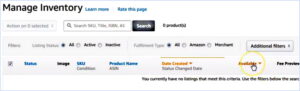
Display All Inventory and check details:
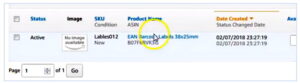
Click to display individual products.
[ No Image Available ] Note that the product image may not upload immediately … it takes some time because Amazon personnel process the images manually. If your image hasn’t been made available within a day, contact Amazon to check.
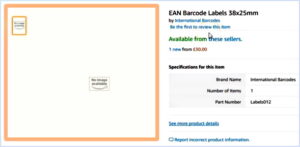
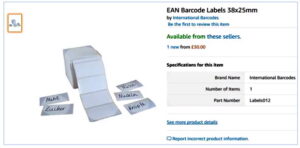
Example – Image displayed after some time:
Deal with any UPC code display problems:
Amazon sometimes does not display UPC codes correctly, possibly because they use their own codes:

In this case you need to:
A) Edit the product (the Edit button is at far right),
B) Add the UPC code in the Description:
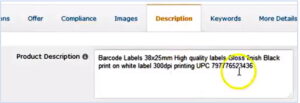
C) …then click Save and Finish.
> You will then see a message on the expected time to update:

Save everything after the update, and then you will be able to review your Product Description text, which will include the UPC number.
In time the UPC number will be searchable!
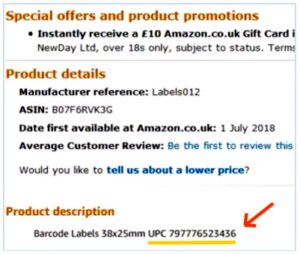
It confirms that your updates have been submitted, but you need to wait a while for approval (for example ” If we accept your suggestions, the changes will be reflected in 15 minutes ” :
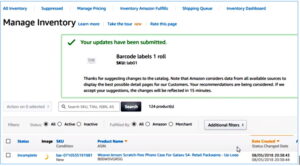
It shows all your listings, that you can Filter or Search:
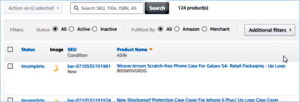
At top right it offers further button options:

.